· Peter De Witte · How-to · 8 min read
My approach to bigger projects with Claude Code
How I use Claude Code in real projects.
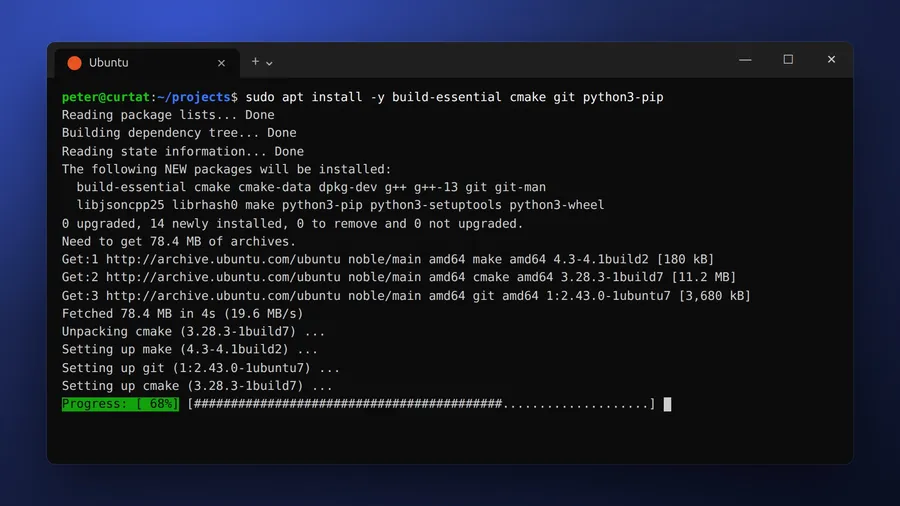
Claude Code, Linux and WSL 2 on Windows 11
This post supports my upcoming post about the Yantra project. It is written for tech-minded readers without a software background: you are at home with computers, but setting up a development environment is new to you. This guide explains why I build programs with Claude Code instead of in Claude chat, why Claude Code works best in Linux, and how to get Linux on a Windows 11 PC without giving up Windows: WSL 2 (Windows Subsystem for Linux) with Ubuntu.
1. Why Claude Code, and why Linux?
1.1 Why not build programs in Claude chat with Projects?
Claude chat (in the Claude Desktop app or on claude.ai) with Projects is great for questions, documents and small scripts. For building a real program it gets in the way, because the work does not happen on your PC:
- The code runs in Anthropic’s cloud. When Claude runs code or creates files in chat, it does so in a container on Anthropic’s servers, not on your PC. Your source files usually have to be uploaded or synced to the Project first; your own compilers, tools and test data are not there.
- Files have to travel back and forth. Every file Claude creates or changes must be downloaded and put back into your project folder by hand. After a few rounds, the copy in the Project, the copy in the chat and the copy on your disk no longer match.
- It eats usage. Project knowledge and uploaded files are part of the conversation’s context. The bigger the project, the more of your usage every message takes, and the sooner you reach the context or usage limit and have to start a new chat. Once a Project gets too large, Claude only searches it and no longer sees all of your code.
That is why I stopped creating programs in chat Projects and switched to Claude Code.
1.2 What Claude Code does differently
Claude Code is Anthropic’s agentic coding tool. It runs on your own computer, in a terminal (or in the Code tab of the Claude Desktop app):
- it reads, searches and edits the files in your project folder directly: no uploads, no downloads, one copy of every file;
- it runs your own tools (compilers, tests, git) on your own machine;
- it searches the project and reads only the files (or parts of files) it needs, instead of carrying the whole project in every message.
The model itself still runs in Anthropic’s cloud and sees what Claude Code sends it, but the work on your files happens locally.
1.3 Why Linux for Claude Code?
Claude Code runs on Windows, macOS and Linux. It works best on Linux, for these reasons:
- Sandboxing. Claude Code can run its shell commands in an OS-level sandbox that limits which files and network hosts they can reach. That sandbox works on Linux, macOS and WSL 2, not on native Windows or WSL 1.
- Bash, not PowerShell. Claude Code’s shell tool works in Bash. On native Windows it needs Git for Windows (Git Bash); without it, Claude Code falls back to PowerShell. Most build scripts, tutorials, and the commands Claude writes assume a Linux shell.
- Linux toolchains. Compilers, CMake, Python, package managers (
apt) and most open-source tools install and behave the same as in the documentation. Most of the open-source packages I use rely on the POSIX standard, which Linux largely implements and native Windows does not. On Windows, many of them need workarounds (such as Cygwin or MSYS2). That is why I always start in WSL first, and only then ask Claude to port the program to Windows. That is how I like to work.
Prefer an app to a terminal? The Code tab of the Claude Desktop app on Windows can run a session inside WSL 2 as well, with the same Linux toolchain.
2. Why WSL 2 instead of installing Linux?
I used Linux natively for 15 years. Now I have switched to using Linux inside Windows. I had many reasons to do that, but here is why it is a good solution for working with Claude Code.
Installing Linux next to Windows (dual boot) or replacing Windows is a big step just to try Claude Code. WSL 2 runs a real Linux kernel in a lightweight virtual machine that Windows manages for you:
- you keep Windows, Office, Outlook and your other programs; international business runs on Microsoft Office, whether you like it or not;
- Ubuntu starts within a few seconds from a terminal window;
- with WSL, Linux and Windows work hand in hand: they share files. Windows
drives appear under
/mnt/c, and your Linux files show up in File Explorer under\\wsl.localhost\Ubuntu; - you can start Windows programs from Linux (section 6).
3. Install WSL 2 and Ubuntu on Windows 11
Requirements: Windows 11, an administrator account, and hardware virtualization turned on (it is on by default on most PCs; check Task Manager > Performance > CPU > Virtualization: Enabled).
-
Open PowerShell as administrator. Right-click Start, choose Terminal (Admin) or search for PowerShell and choose Run as administrator.
-
Install WSL and Ubuntu with one command:
wsl --installThis turns on the Windows features WSL needs, installs WSL 2 and installs the default distribution, Ubuntu.
If you only see WSL’s help text, WSL is already installed. Then install Ubuntu yourself:
wsl --list --online        # shows the available distributions
wsl --install -d Ubuntu
If the download hangs at 0.0 %, use
wsl --install --web-download -d Ubuntu. -
Restart Windows when asked.
-
Create your Linux user. After the restart Ubuntu opens by itself (or start Ubuntu from the Start menu). Wait while it unpacks, then choose a user name and a password. This account is separate from your Windows account; the password is the one
sudoasks for. Typing a password shows nothing on screen: that is normal. -
Check that it runs as WSL 2. In PowerShell:
wsl --list --verboseThe
VERSIONcolumn must say2. If it says1:wsl --set-version Ubuntu 2 wsl --set-default-version 2 -
Update Ubuntu. In the Ubuntu window:
sudo apt update && sudo apt upgrade -y -
Keep WSL itself up to date from time to time, in PowerShell:
wsl --update
Tip: install Windows Terminal (included in Windows 11). It opens Ubuntu, PowerShell and CMD in tabs; pick Ubuntu from the drop-down arrow next to the tabs.
4. Work in the Linux file system
-
Keep your projects inside Linux, for example in
~/projects(/home/<user>/projects). File access there is much faster than on/mnt/c, and Windows sync tools don’t touch it. -
To reach a Windows file from Linux, use
/mnt/c/..., for example/mnt/c/Users/<you>/Downloads. -
To open the current Linux folder in File Explorer:
explorer.exe . -
wslpathconverts paths between the two worlds:wslpath -w ~/projects # \\wsl.localhost\Ubuntu\home\<user>\projects wslpath -u 'C:\Users' # /mnt/c/Users
5. Install Claude Code in Ubuntu
Install and start Claude Code inside the Ubuntu terminal, not from PowerShell or CMD:
curl -fsSL https://claude.ai/install.sh | bash
claude --version
cd ~/projects/my-project
claude
The first start opens a browser to log in. Claude Code needs a paid plan
(Pro, Max, Ultra, Team, Enterprise) or a Console account. Native installations
update themselves in the background. claude doctor checks the
installation.
6. Start Windows programs from the Linux command line
WSL can run Windows programs directly: anything ending in .exe runs from
Bash (notepad.exe, explorer.exe .). Windows programs don’t understand
Linux paths, though, so a Linux file name must first be converted with
wslpath -w.
The snippet below (I keep it in ~/.bashpdw) wraps that in short commands:
| Command | What it does |
|---|---|
word report.docx | opens the file in Word (no argument: a blank Word) |
chrome page.html / chrome https://... | opens a local file or a URL in Chrome |
Claude can add the same for Excel, PowerPoint or any other Windows program.
The programs start in the background (& disown), so the terminal stays free
and closing it does not close the program. Tab completion only suggests files
of the right type (for word: .doc, .docx, .docm, .rtf).
Install
I could give you a complete, working file, but now that you have Claude Code, let it finish the job. This snippet shows how to start Word (and Chrome) from WSL 2 and Ubuntu. Ask Claude to extend it and to load it every time you log in.
# MS Office WSL Integrations
office_launcher() {
    local exe_path="$1"
    local file_arg="$2"

    if [ -z "$file_arg" ]; then
        # Launch blank instance in the background
        "$exe_path" & disown
    else
        # Convert path to Windows format and launch in the background
        local win_path
        win_path=$(wslpath -w "$file_arg")
        "$exe_path" "$win_path" & disown
    fi
}

word() {
    office_launcher "/mnt/c/Program Files/Microsoft Office/root/Office16/WINWORD.EXE" "$1"
}

chrome() {
    local exe_path="/mnt/c/Program Files/Google/Chrome/Application/chrome.exe"
    if [ -e "$1" ]; then
        # Local file: convert path to Windows format
        office_launcher "$exe_path" "$1"
    elif [ -n "$1" ]; then
        # URL: pass through unchanged
        "$exe_path" "$1" & disown
    else
        "$exe_path" & disown
    fi
}

# Tab completion: only offer matching files (and directories)
shopt -s extglob
complete -o plusdirs -f -X '!*.@(doc|docx|docm|rtf|DOC|DOCX|DOCM|RTF)' word
7. Sources
- Claude Code setup and platform support: https://code.claude.com/docs/en/setup
- Claude Code in the Desktop app (Code tab, WSL sessions): https://code.claude.com/docs/en/desktop
- Claude Code sandboxing: https://code.claude.com/docs/en/sandboxing
- Install WSL (Microsoft): https://learn.microsoft.com/en-us/windows/wsl/install
- WSL file storage and performance (Microsoft): https://learn.microsoft.com/en-us/windows/wsl/filesystems